falconskytechpk.com

← Back to Tools

Miscellaneous Driver

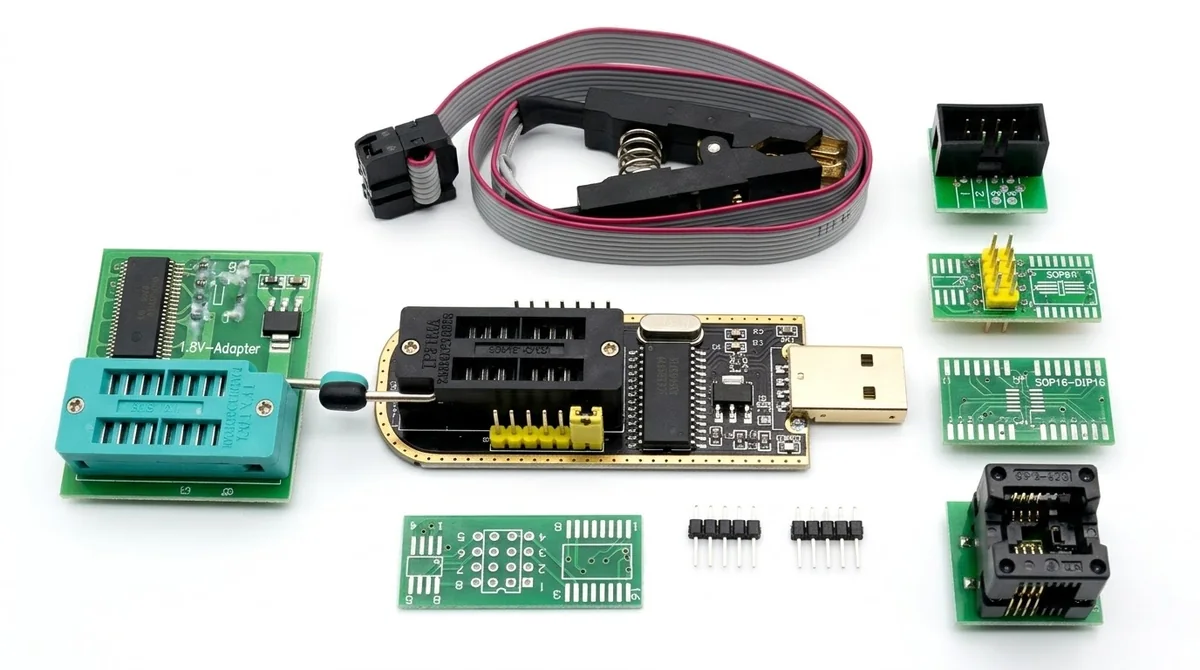
Drivers for programmers and RS232 loader tools. Har driver ke screenshots, programmer aur loader ki pictures aur download neeche milenge.

1 EEPROM CH341A Programmer Driver

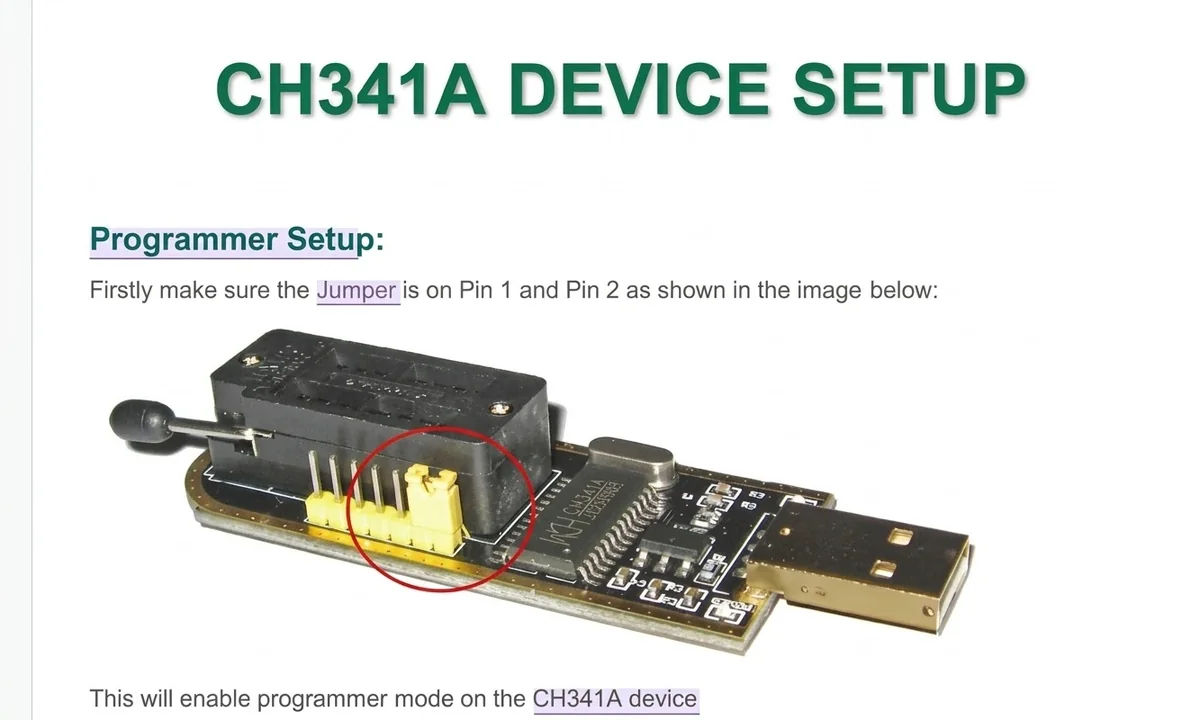
🔌 The CH341A USB driver bridges communication between your Windows PC and the CH341A programmer. Without it, your computer will not recognise the device, so you cannot read or write EEPROM or flash memory chips.

📖 Read more ▾▴ Read less
🧩 Chipset: CH341A USB 🏷️ Driver version: 2.2.0.21 📅 Release date: 06/05/2009

📦 Driver Files & Package Contents

Before you start, make sure you have the official driver package. It normally contains:

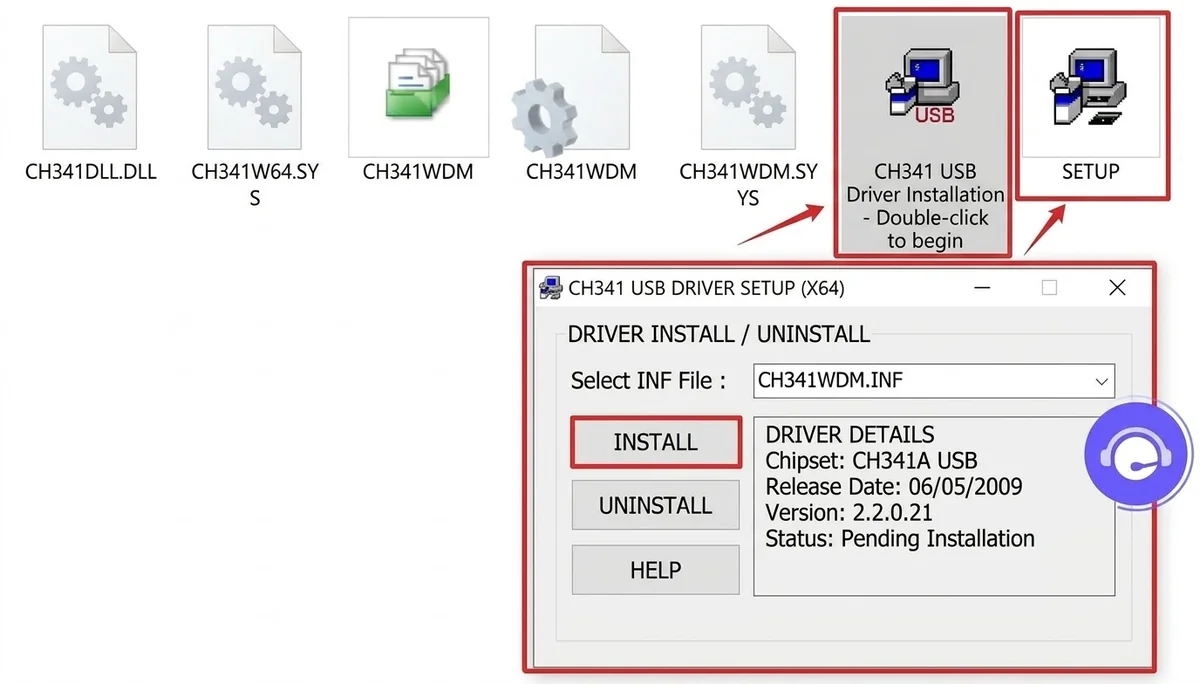
  • ⚙️ CH341DLL.DLL & CH341W64.SYS: core library and system driver files for 32-bit and 64-bit Windows.
  • 📄 CH341WDM.INF: the main setup information file Windows uses to configure the USB port interface (USB-EPP/I2C).
  • 🖥️ SETUP application: the automatic installer that makes deployment simple.

🛠️ Step-by-Step Installation

  1. 📥 Download and extract. Download the official driver archive and extract it to an easy-to-find folder, such as your desktop. Make sure you can see the CH341WDM.INF file and the SETUP executable inside.
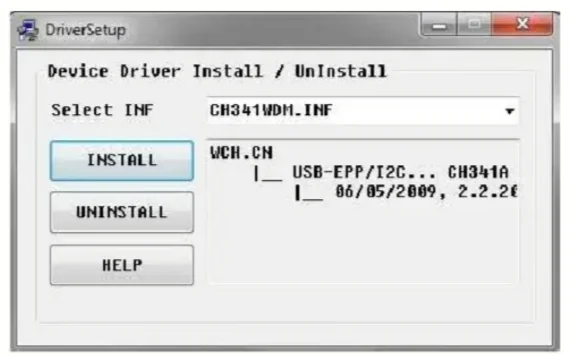
  2. ▶️ Run the Setup utility. Double-click the SETUP icon, or run the installer as administrator. The "DriverSetup" window will open with Install and Uninstall options.
  3. 💾 Select the INF file and install. Check that CH341WDM.INF is selected in the dropdown, then click INSTALL. The status panel will show the chipset details (Chipset: CH341A USB), the release date and driver version 2.2.0.21.

✅ Verify Driver Status in Windows

After installing, confirm that Windows recognises the hardware:

  • 🔌 Plug your CH341A programmer into a free USB port.
  • 🧭 Open Device Manager and look under Ports (COM & LPT) or Universal Serial Bus controllers.
  • 👍 Check that WCH.CN USB-EPP/I2C CH341A is listed with no yellow exclamation mark or warning symbol.

⚠️ Troubleshooting Common Driver Issues

  • 🔐 Driver signature error on Windows 10/11: if Windows blocks the installation because the driver is unsigned, you may need to temporarily disable Driver Signature Enforcement in the advanced startup settings.
  • ❓ Unrecognised device: if the device appears as "Unknown Device", right-click it in Device Manager, choose Update Driver, browse to your extracted folder and select CH341WDM.INF manually.
DriverDownloads
EEPROM CH341A Programmer Driver … ⬇ Download

2 CH340 USB to Serial Driver

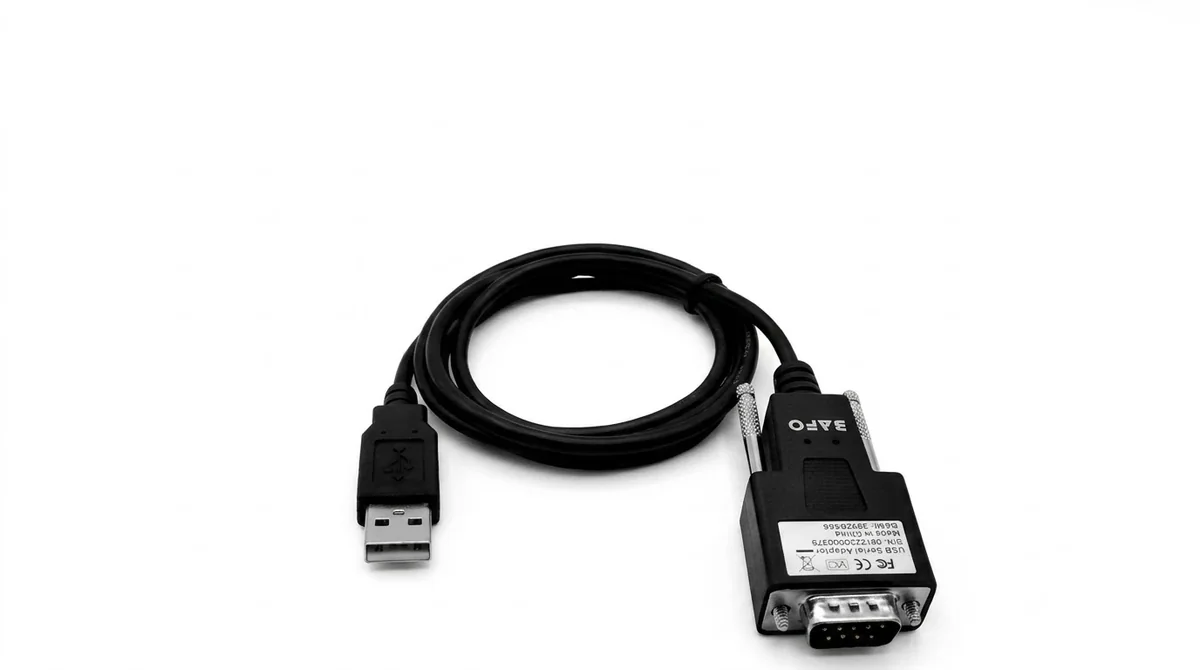
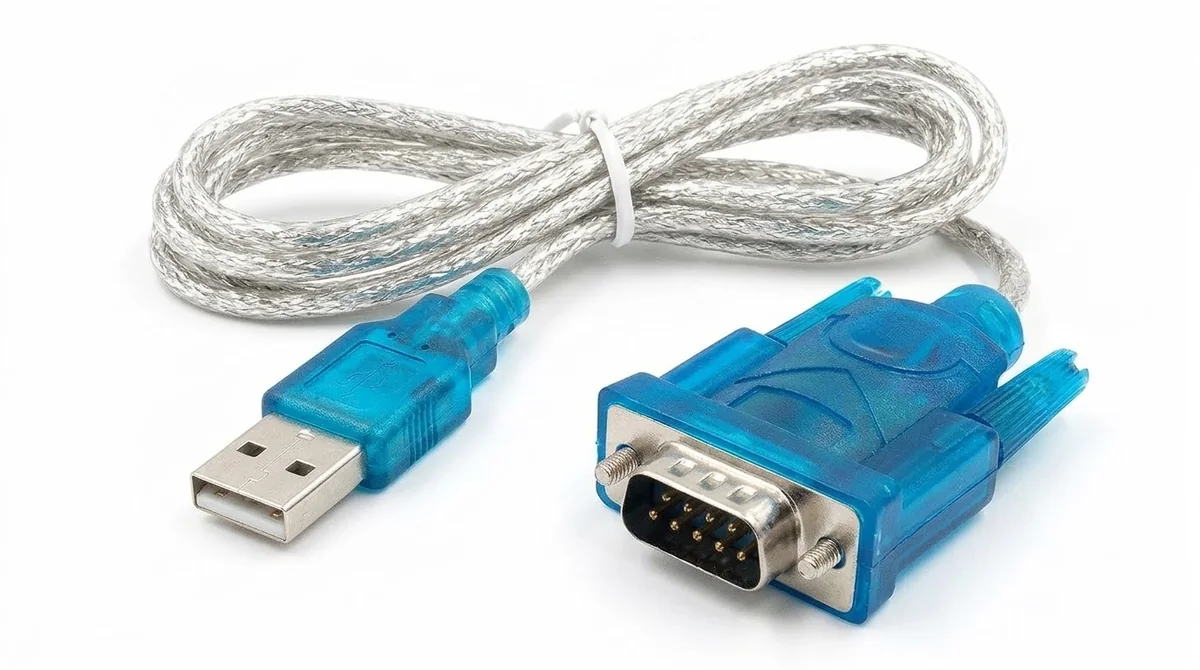
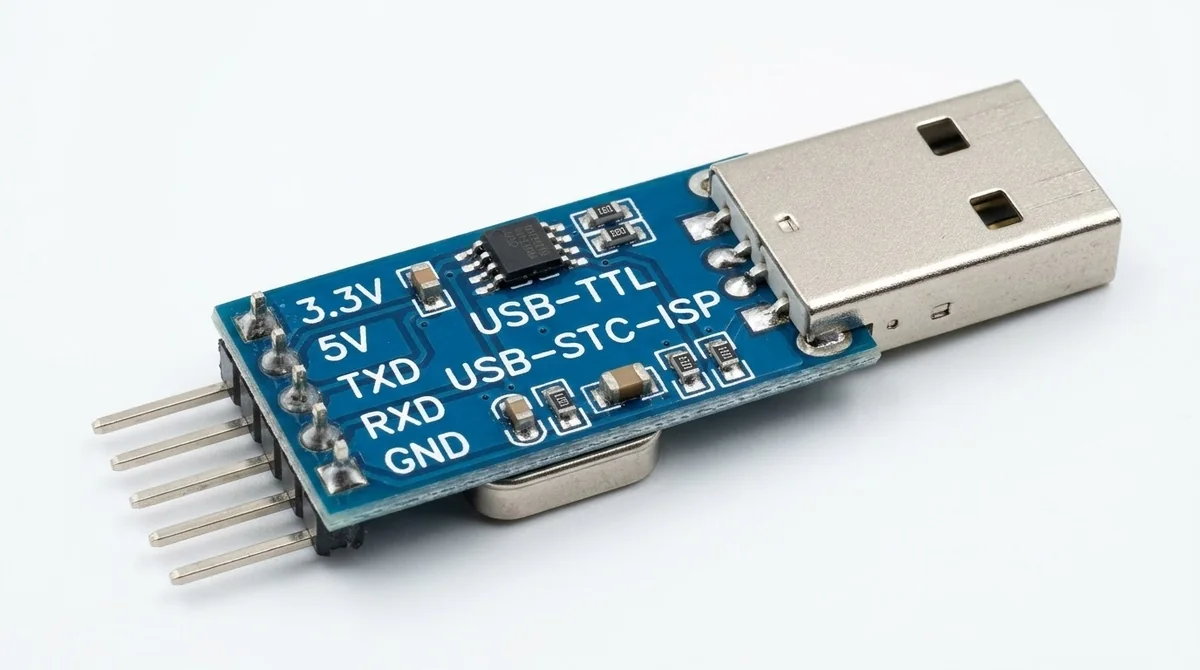
🔄 The CH340 USB-to-Serial adapter (often sold as a USB to DB9 RS232 cable) lets modern computers, which have no traditional serial port, talk to legacy serial devices, microcontrollers, satellite receivers and industrial equipment. To make the adapter work, you must install the correct WCH CH340 driver.

📖 Read more ▾▴ Read less
🧩 Chipset: USB-SERIAL CH340 🏷️ Driver version: 3.4.2014 📅 Release date: 08/08/2014

📦 Driver Files & Package Contents

The official driver package normally contains these core files:

  • 📄 CH341SER.INF: the main setup information file Windows uses to configure the USB-to-serial communication port.
  • ⚙️ CH341SER.SYS / DLL: system driver files that handle serial data transfer on 32-bit and 64-bit Windows.
  • 🖥️ SETUP utility: an automatic application that handles driver installation and uninstallation.

🛠️ Step-by-Step Installation

  1. 📥 Download and extract. Download the official CH340 driver package and extract it to a folder you can find easily. Make sure you can see the CH341SER.INF file and the setup executable inside.
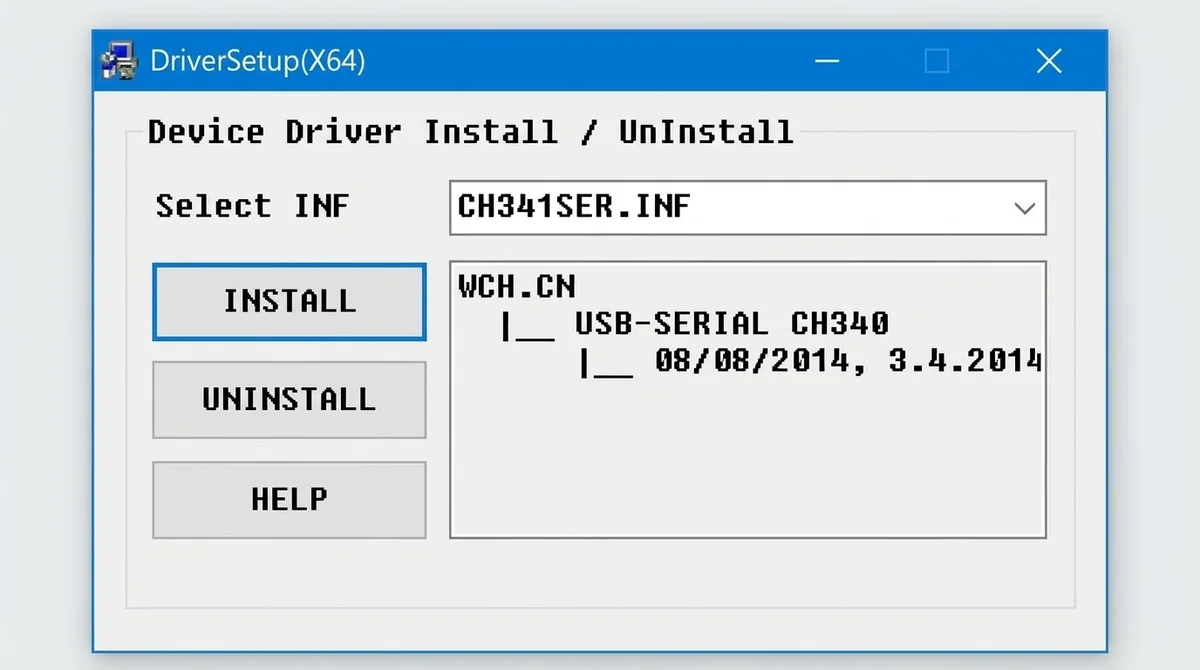
  2. ▶️ Run the Setup utility. Right-click the setup file and run it as administrator. The DriverSetup(X64) window will open with INSTALL, UNINSTALL and HELP buttons.
  3. 💾 Install the driver. Check that CH341SER.INF is selected in the dropdown, then click INSTALL. A success message or the updated status panel will show USB-SERIAL CH340 with its release date and version.

✅ Verify Driver Status (Device Manager)

After installing, confirm that your computer recognises the cable:

  • 🔌 Plug your CH340 USB-to-RS232 adapter cable into a free USB port.
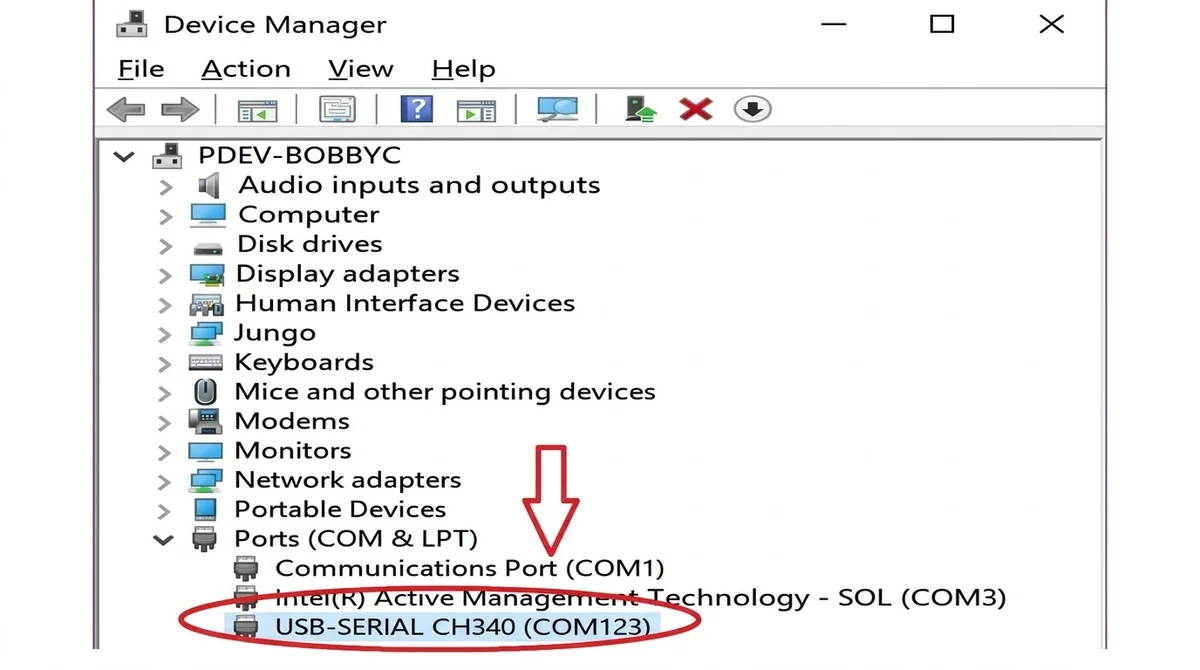
  • 🧭 Open Device Manager on Windows and expand Ports (COM & LPT).
  • 👍 Check that USB-SERIAL CH340 is listed with a COM port number (for example COM3 or COM123) and no warning symbol.
⚠️ Troubleshooting Common Issues

  • 🔺 Yellow triangle / Code 10 error: this usually means the driver is outdated or conflicting. Download the latest version from the official manufacturer website and update the driver manually in Device Manager.
  • 📡 Device not responding: make sure the cable is plugged in firmly, and that your flashing or terminal software (such as PuTTY or MTK tools) uses the exact COM port number shown in Device Manager.
DriverDownloads
CH340 USB to Serial Driver … ⬇ Download

3 PL2303 USB to TTL

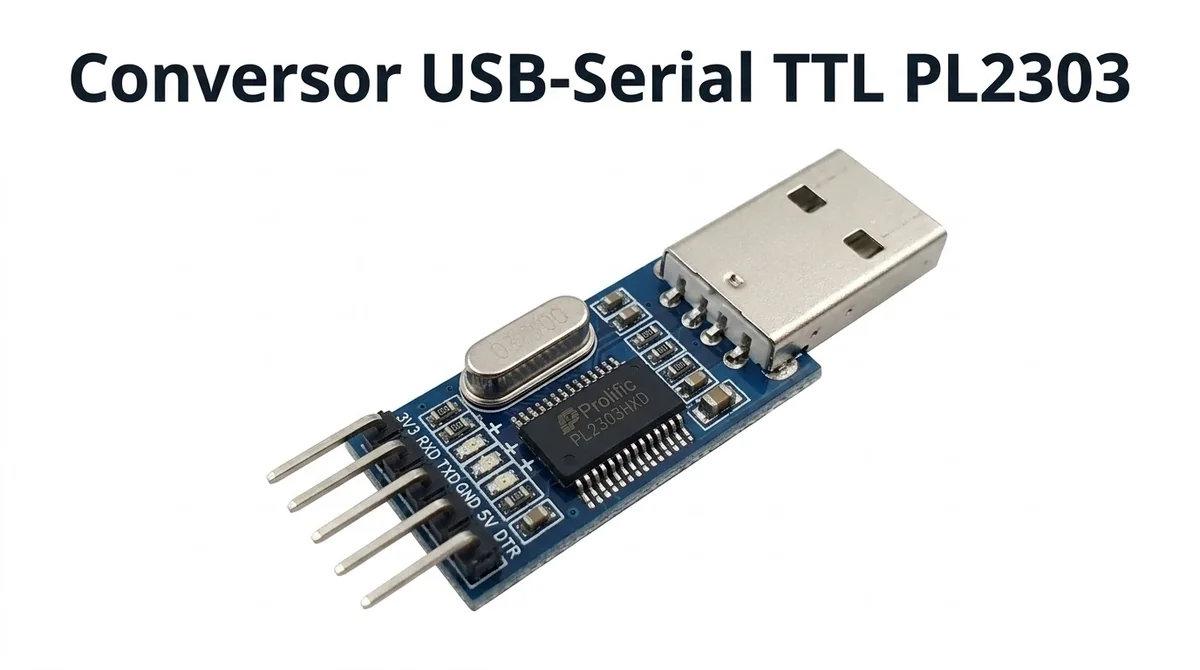
🔁 The PL2303 Prolific USB-to-TTL adapter (and USB-to-Serial cable) uses a popular bridge chip made by Prolific Technology. It lets modern computers connect to microcontrollers, STC/Arduino boards, set-top boxes and serial debugging ports over a normal USB connection. The driver must be installed so your operating system can recognise the adapter and assign a working COM port.

📖 Read more ▾▴ Read less
🧩 Chipset: Prolific PL2303 🏷️ Installer: v110 🔌 Port: Prolific USB-to-Serial Comm Port

📦 Driver Package Contents & Files

The official driver installer package normally contains:

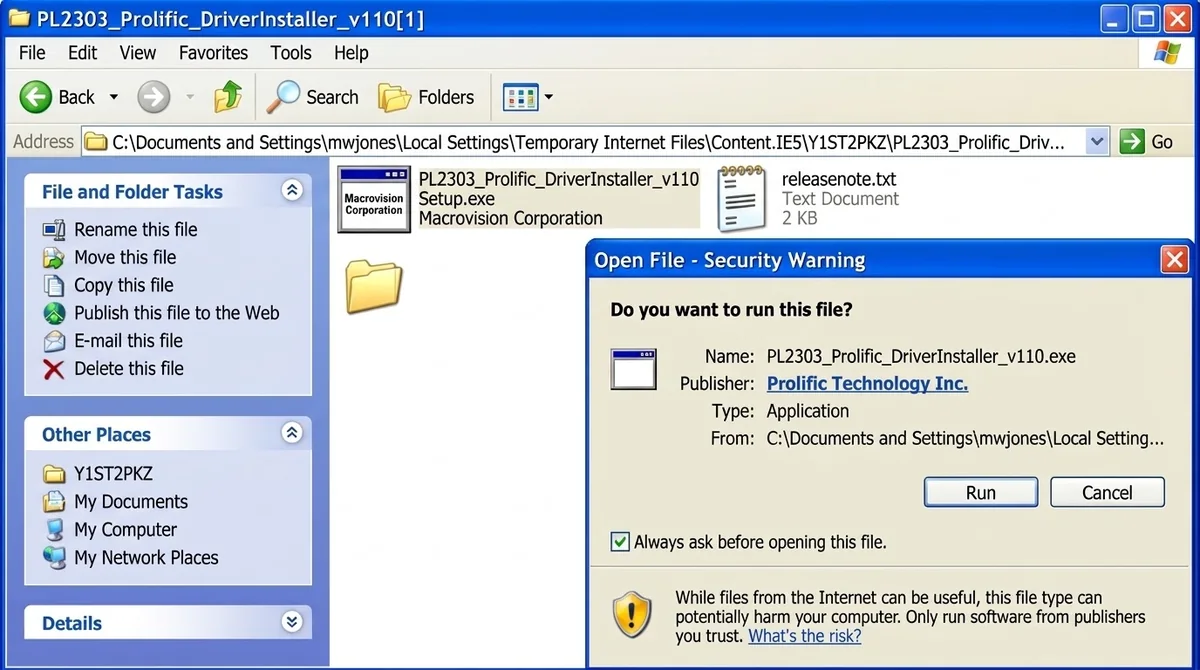
  • 🖥️ PL2303_Prolific_DriverInstaller_v110.exe: the automatic setup utility that deploys the driver.
  • ⚙️ Setup.exe: the core installation executable, managed by Macrovision Corporation.
  • 📝 releasenote.txt: a text file with version changes, release history and supported operating systems.

🛠️ Step-by-Step Installation

  1. 📥 Download and extract. Download the official Prolific driver installer package and extract the archive to a folder on your computer.
  2. ▶️ Run the installer. Right-click PL2303_Prolific_DriverInstaller_v110.exe (or the setup file) and choose Run as administrator. If a Security Warning asks "Do you want to run this file?", click Run.
  3. 💾 Complete the setup. Follow the on-screen prompts of the InstallShield Wizard until it finishes copying the system files and registering the device drivers.

✅ Verify Driver Status (Device Manager)

After the installation finishes, confirm the hardware is communicating properly:
  • 🔌 Plug your PL2303 USB-to-TTL adapter or cable into a free USB port.
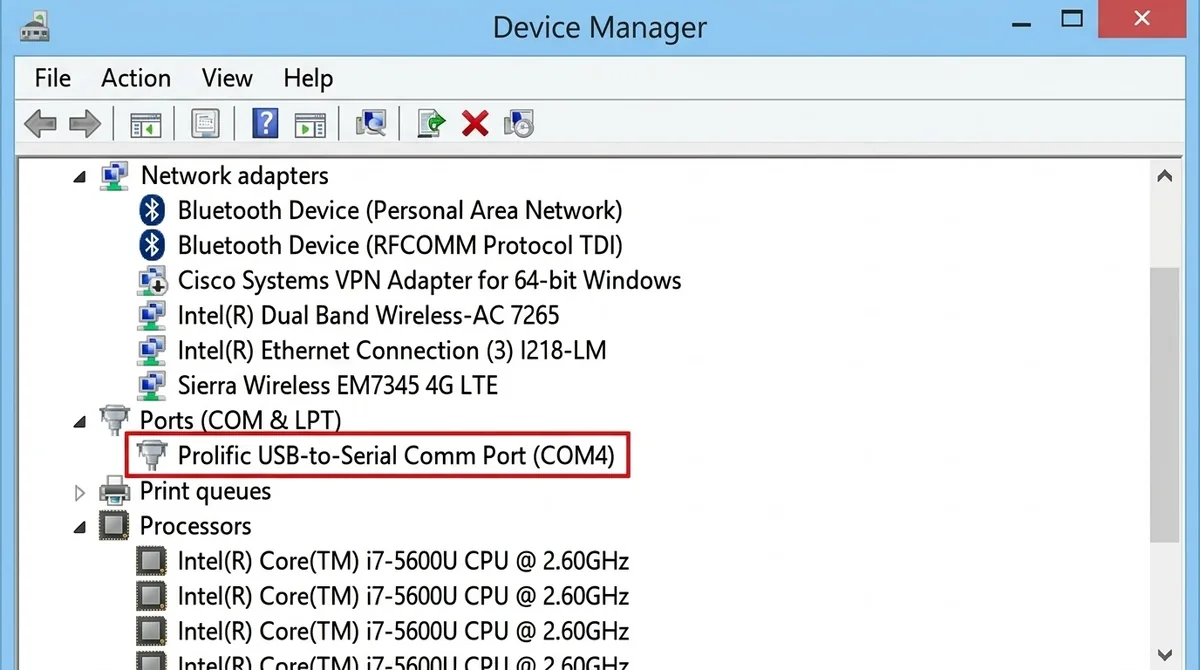
  • 🧭 Open Device Manager and expand Ports (COM & LPT).
  • 👍 Check that Prolific USB-to-Serial Comm Port (COM4), or whichever COM number was assigned to you, is listed with no yellow warning triangle or error code.

⚠️ Troubleshooting Common Issues

  • 🔺 Yellow triangle / Error Code 10: this usually means a driver version conflict, which is common with newer Windows updates and older clone chips. Use a compatible driver version, or roll back to an older stable release (such as v1.5.0 or v1.10) if you have a legacy chip.
  • ❓ Unrecognised device: unplug the adapter, restart your computer or scan for hardware changes in Device Manager, and then plug the adapter into a different USB port.
DriverDownloads
PL2303 USB to TTL … ⬇ Download