falconskytechpk.com

โ† Back to Firmware

ALi

ALi3510D Firmware

CHIPSET: ALi M3510D TYPE: Main board STATUS: ACTIVE

Latest ALi3510D firmware for hardware HW104.02.019 (software 7595, TEN Sports build). Updates for the ALi3510D board, which is related to the 3510C but a slightly different hardware revision.

FW / Available Versions

The files below are official / community-tested firmware versions. Match your exact model number before updating.

HW104.02.019 ยท SW 7595 2019-07-28

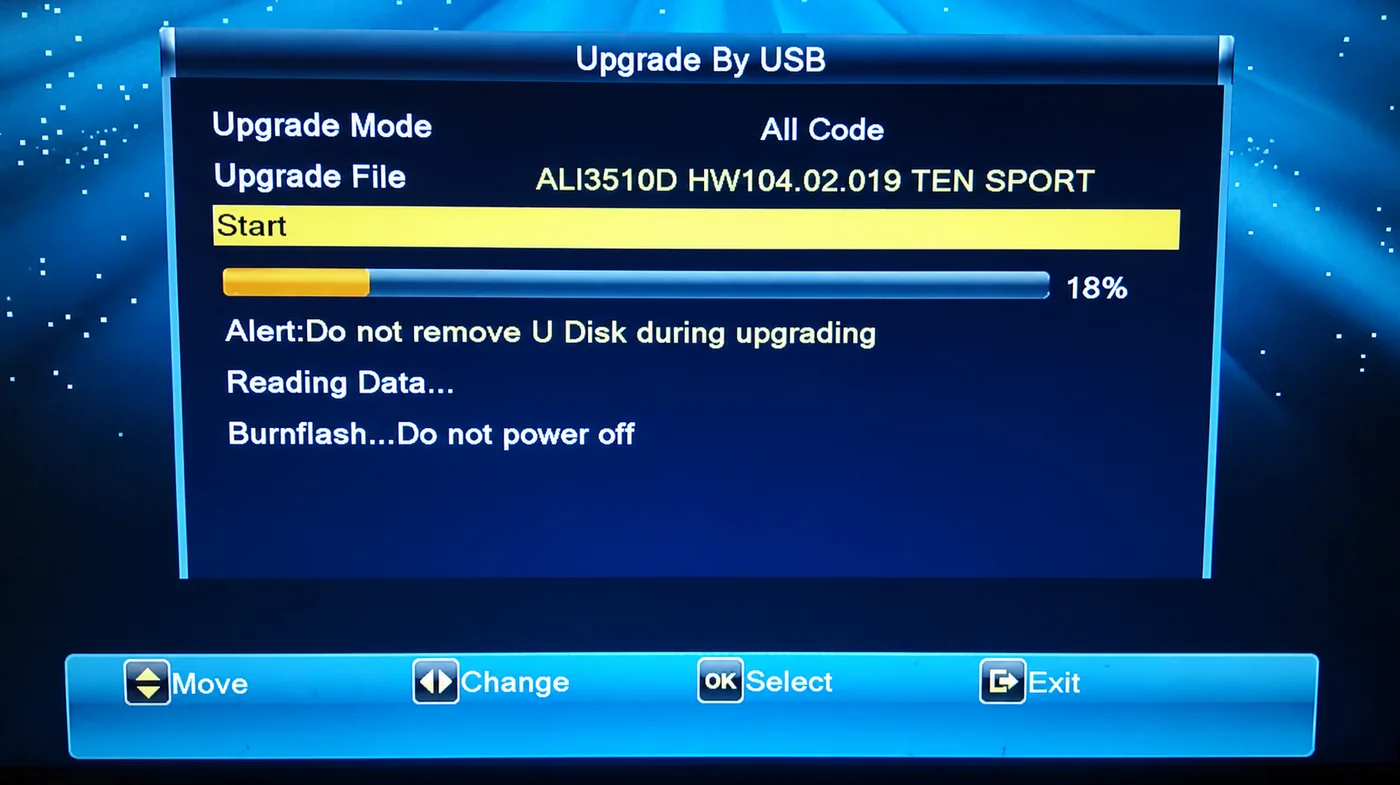
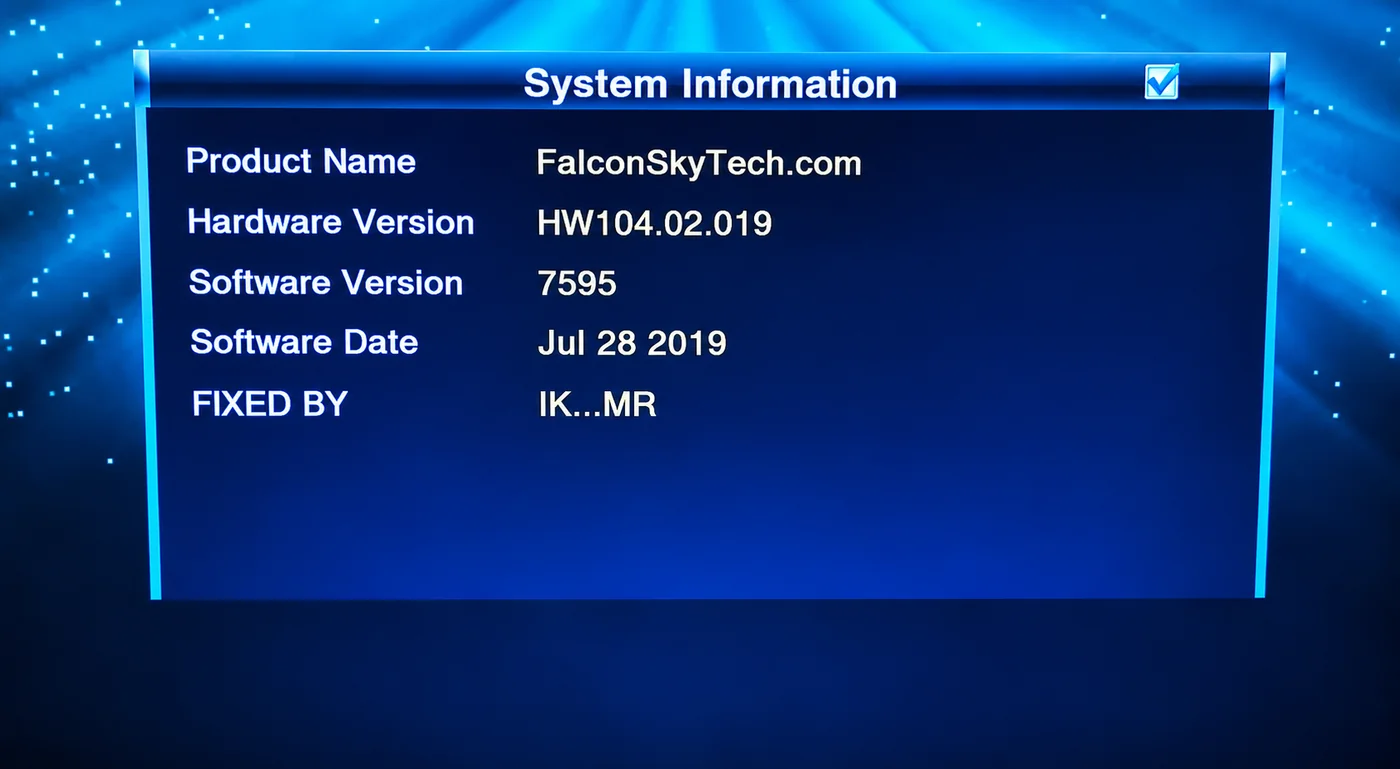
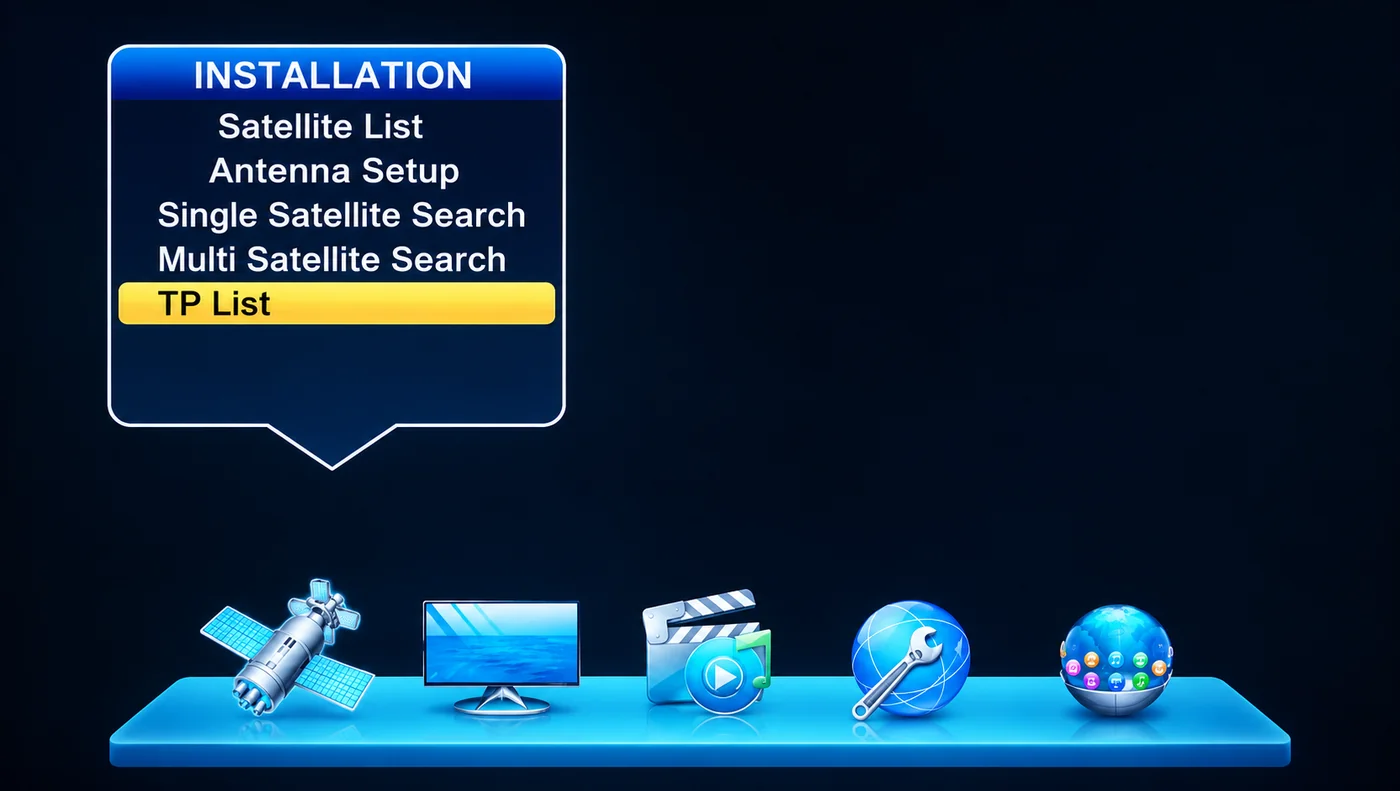
ALi3510D TEN Sports firmware โ€” installation menu, system information and USB upgrade

๐Ÿš€ ALi3510D HW104.02.019 โ€” TEN Sports Software (SW 7595)

Firmware for ALi3510D hardware HW104.02.019 with software version 7595. The build is labelled TEN Sports and includes the Installation menu with satellite, antenna and transponder tools, plus the USB upgrade screen for flashing the full code.
โœจ What's New

  • ๐Ÿ†• Software 7595 โ€” release dated Jul 28 2019
  • ๐Ÿ›ฐ๏ธ Installation Menu โ€” Satellite List, Antenna Setup, Single & Multi Satellite Search and TP List
  • ๐Ÿ“บ TEN Sports Build โ€” firmware labelled for the TEN Sports channel set
  • โ„น๏ธ System Information โ€” shows product name, hardware and software version and date

โฌ†๏ธ Upgrade

  • ๐Ÿ’พ Upgrade By USB โ€” All Code mode with on-screen progress
  • โš ๏ธ Do not remove the USB drive or power off while the flash is burning
โญ ALi3510D HW104.02.019 ยท SW 7595 Installation Menu โ€ข TP List โ€ข Single & Multi Satellite Search โ€ข USB Upgrade

User Interface (HW104.02.019 ยท SW 7595)

ALi3510D HW104.02.019 System Information screen showing software 7595
System Information
ALi3510D Installation menu with Satellite List, Antenna Setup and TP List
Installation menu
ALi3510D Upgrade By USB screen with All Code mode
Upgrade by USB

Download

VersionDateSizeProcessorUpload byDownloads
HW104.02.019 (SW 7595) 2019-07-28 4 MB ALi M3510DFalconSkyTechโ€ฆ Download
Check your exact model/version number on the panel or in the menu before updating. Installing the wrong firmware can brick your receiver โ€” never power off during flashing.

How to update

  1. Download the firmware file and copy it onto a USB drive formatted as FAT32.
  2. Plug the USB into the receiver's port and open the Software Upgrade / USB Update option from the menu.
  3. Select the correct file and start the update โ€” do not power off during the process.
  4. The receiver will restart automatically once the update completes.